Showing posts with label Tech. Show all posts

Wednesday, February 1, 2023

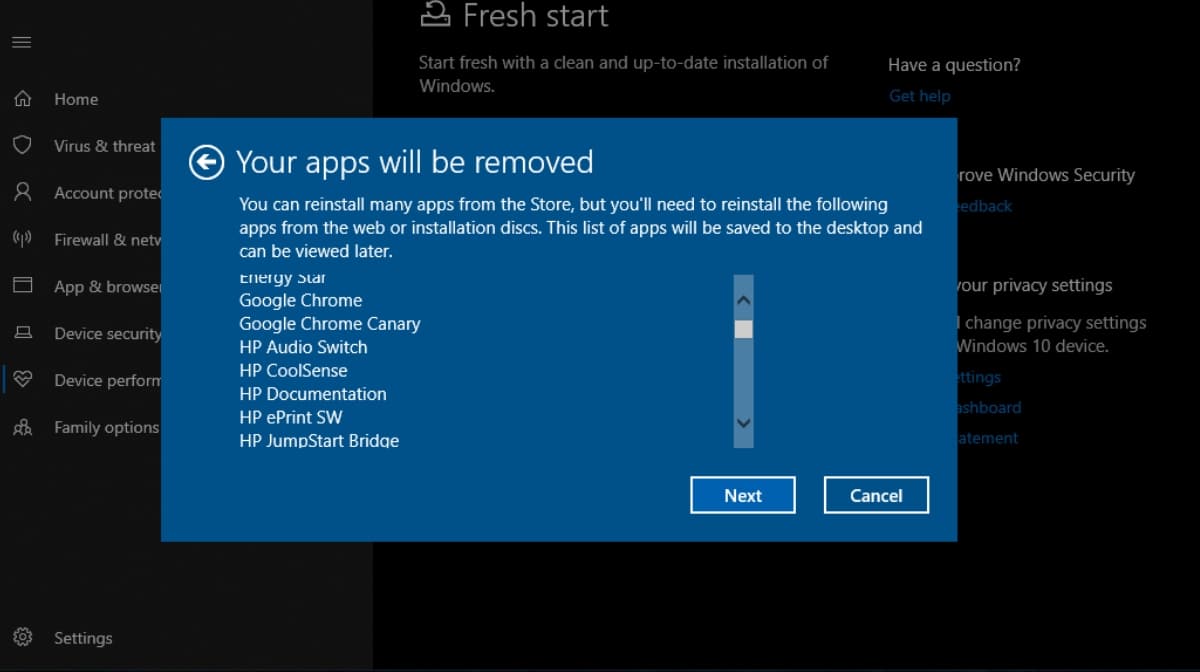
Bloatware on Windows 10: What It Is and How to Remove It

 How To Remove Bloatware From Windows 10? (100% Working)

Introduction: Bloatware, also known as junkware or shovelware, refers to pre-installed software on a computer that is often unnecessary and takes up valuable storage space. In Windows 10, these unwanted programs can slow down your computer, consume resources, and negatively affect performance. In this article, we will explain what bloatware is, why it is a problem, and how to remove it from your Windows 10 computer.

What is Bloatware: Bloatware refers to software that is pre-installed on a computer, usually by the manufacturer, that you do not want or need. This software can include trial versions of antivirus programs, games, toolbars, and other programs that you may never use. Bloatware can also include system utilities, such as backup software, that you can find free alternatives for online.

Why Bloatware is a Problem: Bloatware is a problem because it takes up valuable storage space on your computer and can slow down your system by consuming resources. These programs run in the background, even when you don’t need them, and can interfere with other programs and cause them to run more slowly. Additionally, bloatware can also be a security risk because some programs can contain malware or spyware that can compromise your personal information.

How to Remove Bloatware from Windows 10: There are several ways to remove bloatware from Windows 10. Here are the most common methods:

  1. Uninstall through the Control Panel: The easiest way to remove bloatware from Windows 10 is to use the built-in uninstallation feature in the Control Panel. Go to Start > Settings > Apps and find the program you want to remove. Click on it, then click the “Uninstall” button.

  2. Use the Windows 10 Settings app: Another way to remove bloatware is to use the Windows 10 Settings app. Go to Start > Settings > System > Apps & features, and find the program you want to remove. Click on it, then click the “Uninstall” button.

  3. Use a third-party program: There are many third-party programs available that can help you remove bloatware from Windows 10. One popular program is CCleaner. Simply download and install the program, then use it to scan your computer for bloatware.

Conclusion: Bloatware can significantly slow down your Windows 10 computer and consume valuable storage space. By removing these unwanted programs, you can improve the performance of your computer and free up valuable space. Whether you choose to use the Control Panel, the Windows 10 Settings app, or a third-party program, removing bloatware is a simple and effective way to keep your computer running smoothly.

How to install unsigned drivers for Windows

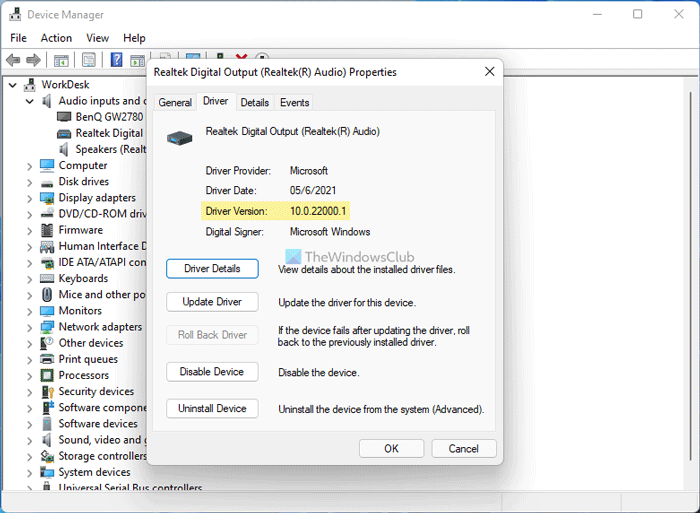
 How to check the Driver Version in Windows 11/10

Introduction: In Windows operating system, unsigned drivers are drivers that are not verified by Microsoft. These drivers are often created by individual developers or small companies and are not digitally signed with a certificate from a trusted certificate authority. Despite the security concerns that come with installing unsigned drivers, there may be times when it is necessary to install them in order to use certain hardware or software.

Installing unsigned drivers on Windows can be a bit of a challenge, but it is possible to do so by following these steps:

  1. Boot into Advanced Startup Options: To do this, hold the Shift key while clicking the restart button in Windows. This will take you to the advanced startup options screen.

  2. Disable Driver Signature Enforcement: From the advanced startup options screen, select “Troubleshoot,” then “Advanced Options,” then “Startup Settings,” and finally “Restart.” After your computer restarts, press the “7” key to disable driver signature enforcement.

  3. Install the Unsigned Driver: With driver signature enforcement disabled, you can now install the unsigned driver. Simply double-click the installation file, and follow the on-screen instructions to complete the installation process.

  4. Enable Driver Signature Enforcement: Once the driver is installed, it is recommended to re-enable driver signature enforcement to help ensure the stability and security of your system. To do this, follow the same steps you used to disable driver signature enforcement, but instead press the “F7” key to enable it.

Note: Installing unsigned drivers can be dangerous, and may pose a security risk to your system. Before installing an unsigned driver, it is recommended to verify its source and ensure it is from a trusted source.

Conclusion: Installing unsigned drivers on Windows can be a bit of a challenge, but it is possible to do so by following the steps outlined in this article. However, it is important to remember that installing unsigned drivers can be dangerous and may pose a security risk to your system. Before installing an unsigned driver, it is recommended to verify its source and ensure it is from a trusted source. By taking these precautions, you can help ensure the stability and security of your Windows operating system.

Tuesday, January 31, 2023

Top 5 Websites for Downloading Useful Software

 Apa Itu Software? Kenali Pengertian, Fungsi, dan Contohnya pada Komputer -  Hot Liputan6.com

Finding and downloading software for your computer can be a difficult and time-consuming task. With so many options available, it can be difficult to know where to start. However, there are a number of websites that make the process of finding and downloading software much easier. In this article, we'll take a look at five of the best websites for downloading useful software. These websites offer a wide range of software programs, from security and productivity software to fun games and more, making it easy to find what you're looking for. So, let's get started!

  1. Softpedia - Softpedia is a large software library that offers both free and paid software for Windows, Mac, and Linux. The site is well-organized and easy to navigate, making it easy to find the software you need. Visit their official website at.

  2. Downloadcrew - Downloadcrew is a software download site that offers the latest software updates, freeware, and shareware programs. The site is updated daily and offers a wide range of software categories to choose from. Visit their official website at.

  3. FileHippo - FileHippo is a popular software download site that offers a large collection of free software for Windows, Mac, and Linux. The site is easy to use and offers a user-friendly interface that makes finding the software you need a breeze. Visit their official website at.

  4. Ninite - Ninite is a website that allows you to download and install multiple software programs with just one click. The site offers a wide range of popular software, including security, utility, and productivity programs, and is a great option for those looking to quickly and easily install multiple software programs. Visit their official website at.

  5. MajorGeeks - MajorGeeks is a software download site that offers both freeware and shareware programs for Windows. The site is well-organized and easy to navigate, making it easy to find the software you need. Additionally, the site offers software reviews, so you can be sure you're downloading a quality program. Visit their official website at.

In conclusion, these websites offer a great way to find and download useful software for your computer. Whether you're looking for the latest security software, productivity programs, or just a fun game, these websites have you covered.

How to Install Python in Windows 10

 The Zen of Python: A guide to Python's design principles | by Vishal Sharma  | Towards Data Science

Python is a high-level, interpreted, and general-purpose programming language that is widely used for web development, scientific computing, data analysis, artificial intelligence, and more. It was first released in 1991 and has since become one of the most popular programming languages in the world due to its simplicity, versatility, and large community of developers.

As of the knowledge cut off (2021), the latest version of Python is version 3.9.3, which was released on January 20, 2021. This version includes various improvements and bug fixes, such as improved typing, better error handling, and faster execution times. It is recommended to use the latest version of Python for new projects, as older versions may not have the latest features and security updates.

Installing Python on Windows 10

  1. Download Python: Visit the official Python website (https://www.python.org/downloads/) and download the latest version of Python for Windows.

  2. Run the Installer: Double-click the downloaded .exe file to run the Python installer.

  3. Choose Installation Type: Select “Custom installation” and ensure that the option to add Python to your PATH is checked.

  4. Install to a Directory: Choose a directory to install Python to (e.g. C:\Python3).

  5. Complete the Installation: Follow the on-screen instructions to complete the installation process.

  6. Verify Installation: Open Command Prompt and type “python” to verify that Python has been installed correctly.

  7. Set up a Virtual Environment: It is recommended to use virtual environments to isolate your Python projects and packages. To set up a virtual environment, use the following command in Command Prompt:


With these steps, you should now have Python successfully installed on your Windows 10 machine. Happy coding!

Wednesday, January 18, 2023

5G Technology


5G is the fifth generation of cellular network technology that offers faster speeds, greater capacity, and lower latency compared to previous generations. It is expected to help improve user experiences in terms of video streaming, gaming, and internet of things (IoT) applications.

5G is also expected to improve network efficiency and reduce operational costs by increasing network capacity and reducing the number of base stations required. Additionally, this technology is expected to help drive economic growth by improving productivity and efficiency in various sectors such as manufacturing, transportation, and healthcare.

5G is also expected to help enhance network security by using more advanced encryption technology and reducing the risk of cyber attacks.

However, the implementation of 5G also raises some issues such as privacy concerns and health issues. Some studies suggest that the radiation emitted from 5G networks may be harmful to human health. But most of the research conducted at this time does not find compelling evidence to support this assumption.

Overall, 5G is expected to bring many benefits to users and industries, but its implementation must be done carefully and supervised to ensure that privacy and health issues can be addressed.

What is the difference between GPT and MBR in disk partitioning?


GPT (GUID Partition Table) and MBR (Master Boot Record) are two types of partition formats used to store information about how disk drives are divided into sections (partitions) used by the operating system. Both these formats have significant differences in capacity and compatibility.

MBR (Master Boot Record) is the oldest and most commonly used partition format. It is used by operating systems such as Windows XP and earlier, as well as some versions of Linux. MBR has a maximum capacity of 2 TB and can only handle a maximum of 4 primary partitions.

GPT (GUID Partition Table) is a newer and more advanced partition format. It is used by operating systems such as Windows Vista and newer, as well as some versions of Linux. GPT has a maximum capacity of 9.4 x 10^12 bytes and can handle a maximum of 128 partitions.

The drawback of MBR is the limited capacity, it can only handle a maximum of 4 primary partitions and it cannot be used on hard drives with a capacity of more than 2 TB. While the advantage of GPT is the larger capacity, it can handle a maximum of 128 partitions and can be used on hard drives with a capacity of more than 2 TB.

However, the main difference between these two formats is compatibility. MBR can only be used on BIOS (Basic Input/Output System) systems, while GPT can be used on both BIOS and UEFI (Unified Extensible Firmware Interface) systems. Therefore, if you will be installing a new operating system on a computer that uses UEFI, you should use GPT.

Overall, GPT has advantages over MBR because of its larger capacity and wider compatibility. But if you will be installing an operating system on a computer that only supports BIOS, you should use MBR.

Creating a Bootable USB using Rufus


Creating a bootable USB using Rufus is a relatively easy and quick process to convert a regular USB flash drive into a bootable device that can be used to install an operating system or to start system repairs. Here are the steps you need to follow to create a bootable USB using Rufus:

  1. Download Rufus from its official website. Rufus is a free software available for Windows operating systems.

  2. Connect the USB flash drive to your computer. Make sure that all the data on the drive is backed up before continuing with this process, as all the data on the drive will be erased.

  3. Open Rufus and select the USB flash drive that you want to make bootable from the list of available devices in the application window.

  4. Select the operating system you want to install from the list available in the Rufus window. You can also choose to create a bootable USB from an ISO file that you have already downloaded.

  5. Click on the "Start" button to begin the process of creating the bootable USB. Rufus will extract the selected operating system files and copy them to the USB flash drive.

  6. Once the process is complete, your USB flash drive is ready to be used as a bootable device. You can use it to install a new operating system or to start system repairs on a compatible computer.

It's important to remember that this process will erase all data on the USB drive, so make sure to backup any necessary data before proceeding. Also, be sure to follow the instructions provided by the operating system or software you are installing when using the bootable USB you created.