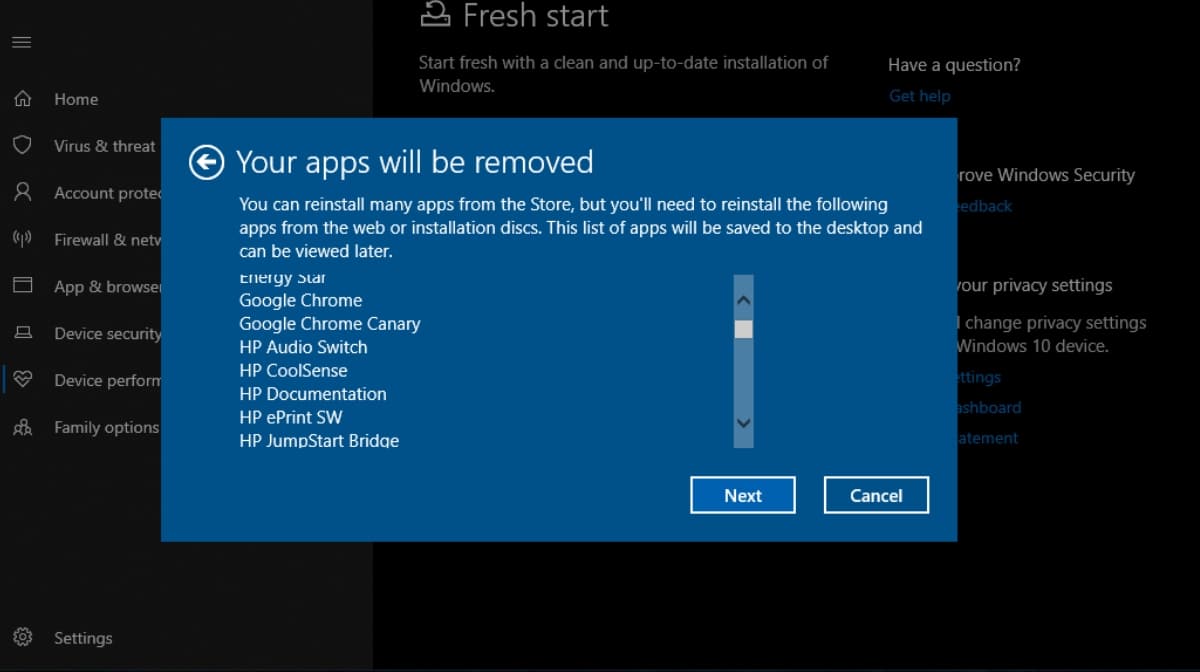
Introduction: Bloatware, also known as junkware or shovelware, refers to pre-installed software on a computer that is often unnecessary and takes up valuable storage space. In Windows 10, these unwanted programs can slow down your computer, consume resources, and negatively affect performance. In this article, we will explain what bloatware is, why it is a problem, and how to remove it from your Windows 10 computer.
What is Bloatware: Bloatware refers to software that is pre-installed on a computer, usually by the manufacturer, that you do not want or need. This software can include trial versions of antivirus programs, games, toolbars, and other programs that you may never use. Bloatware can also include system utilities, such as backup software, that you can find free alternatives for online.
Why Bloatware is a Problem: Bloatware is a problem because it takes up valuable storage space on your computer and can slow down your system by consuming resources. These programs run in the background, even when you don’t need them, and can interfere with other programs and cause them to run more slowly. Additionally, bloatware can also be a security risk because some programs can contain malware or spyware that can compromise your personal information.
How to Remove Bloatware from Windows 10: There are several ways to remove bloatware from Windows 10. Here are the most common methods:
Uninstall through the Control Panel: The easiest way to remove bloatware from Windows 10 is to use the built-in uninstallation feature in the Control Panel. Go to Start > Settings > Apps and find the program you want to remove. Click on it, then click the “Uninstall” button.
Use the Windows 10 Settings app: Another way to remove bloatware is to use the Windows 10 Settings app. Go to Start > Settings > System > Apps & features, and find the program you want to remove. Click on it, then click the “Uninstall” button.
Use a third-party program: There are many third-party programs available that can help you remove bloatware from Windows 10. One popular program is CCleaner. Simply download and install the program, then use it to scan your computer for bloatware.
Conclusion: Bloatware can significantly slow down your Windows 10 computer and consume valuable storage space. By removing these unwanted programs, you can improve the performance of your computer and free up valuable space. Whether you choose to use the Control Panel, the Windows 10 Settings app, or a third-party program, removing bloatware is a simple and effective way to keep your computer running smoothly.

0 comments:
Post a Comment
Note: Only a member of this blog may post a comment.